Use Classic Outlook, not New Outlook
If you are missing classic Outlook on a new computer or after a Windows or Office update, see Classic Outlook missing from computers
Microsoft has two "new" Outlooks, one for MacOS and one for Windows. The Windows version will replace Windows Mail & Calendar in late 2024. Microsoft is hoping to eventually replace classic Outlook with new Outlook, but that is years away. It's just not robust and lacks too many features.
While you cannot turn off the option to try the new Outlook in Windows mail, you can turn it off in classic Outlook for Windows.
Remove Try New Outlook switch
If you want to disable the option "Try the new Outlook", you need to set this registry key then restart Outlook.
HKEY_CURRENT_USER\Software\Microsoft\Office\16.0\Outlook\Options\General
DWORD: HideNewOutlookToggle
Value: 1
If you don't want to edit the registry, you can open the Run command using Windows key + R and paste the following into the box.
reg add "HKCU\Software\Microsoft\Office\16.0\Outlook\Options\General" /v HideNewOutlookToggle /t REG_DWORD /d 00000001 /f
If you prefer to use .reg files, I have this ready-to-use registry file available:
HideNewOutlookToggle.reg
If you prefer to download as a compressed folder (.zip):
HideNewOutlookToggle.zip
Switch back to classic Outlook
To switch back to classic Outlook or Windows Mail, you will either have a New Outlook slider on the top right or an option on new Outlook's Help menu.
Slide New Outlook switch to the left to go back to classic Outlook (or windows Mail).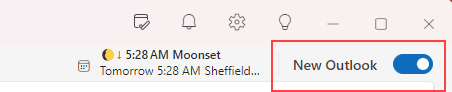
Click Go to classic Outlook (or Windows Mail.)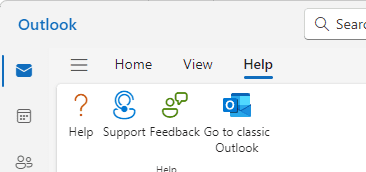
If you don’t have the slider to turn off the new Outlook or on the Help menu, and can’t find both Outlook's on your Start menu, you need to find Outlook.exe. It's under C:\Program Files (or C:\Program Files (x86)) at \Microsoft Office\root\Office16\OUTLOOK.EXE. Double click to run it then pin it to your Taskbar or Start menu.
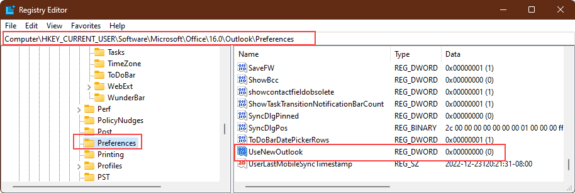
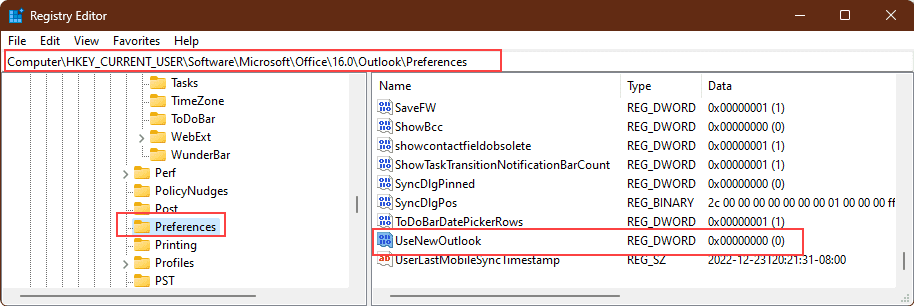
If the new Outlook opens when you run outlook.exe, you'll need to edit the registry.
- Open the Registry Editor by typing regedit in the Start menu and open the registry editor when it comes up.
- Go to
Computer\HKEY_CURRENT_USER\Software\Microsoft\Office\16.0\Outlook\Preferences. - Find UseNewOutlook and double click on it.
- Set the Value Data field to 0.
If you don't want to edit the registry, you can open the Run command using Windows key + R and paste the following into the box.
reg add "HKCU\Software\Microsoft\Office\16.0\Outlook\Preferences" /v UseNewOutlook /t REG_DWORD /d 00000000 /f
Or, if you prefer, I have a ready to use reg file you can download and run. It is available in both a .reg file and in a .zip file, if you prefer downloading zip files.
UseNewOutlook.reg
Or Zipped:
UseNewOutlook.zip
Outlook for Mac
To switch between Legacy Outlook and New Outlook, go to the Outlook app menu and choose Legacy Outlook to toggle between versions. (The command weas previously named New Outlook.) You can also switch from the Help menu.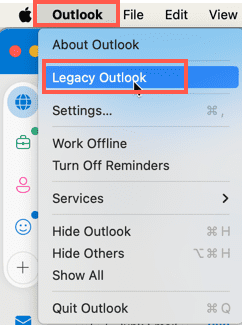
This command should block the new Outlook, hopefully even for updates:
Quit Outlook, open Terminal and paste then run this line:
defaults write com.microsoft.Outlook EnableNewOutlook -Integer 1
Possible values
0 = Switch hidden
1 = Switch displayed, default off
2 = Switch displayed, default on (default)
3 = New Outlook enabled with switch hidden
The above is from Set preferences for Outlook for Mac - Deploy Office | Microsoft Learn
Block New Outlook on Windows 10
Administrators can block new Outlook from being installed as part of the Windows 10 update by adding the following key. (This should work for anyone, but I have not tested it yet to confirm.)
HKEY_LOCAL_MACHINE\SOFTWARE\Microsoft\WindowsUpdate\Orchestrator\UScheduler_Oobe
REG_SZ: BlockedOobeUpdaters
Value: ["MS_Outlook"]
If you don't want to edit the registry, open the Command Prompt using Run as Administrator paste the following command. (To open the Command Prompt, type cmd on the start menu or in the search box and choose Run as Administrator.)
reg add "HKLM\SOFTWARE\Microsoft\WindowsUpdate\Orchestrator\UScheduler_Oobe" /v BlockedOobeUpdaters /t REG_SZ /d ["MS_Outlook"] /f